How to Download All Your Event Photos as a ZIP
How to download every photo and video your guests uploaded, at full quality, as ZIP files. What happens with big events, which browser to use, what to do if a file fails, and how long you have.

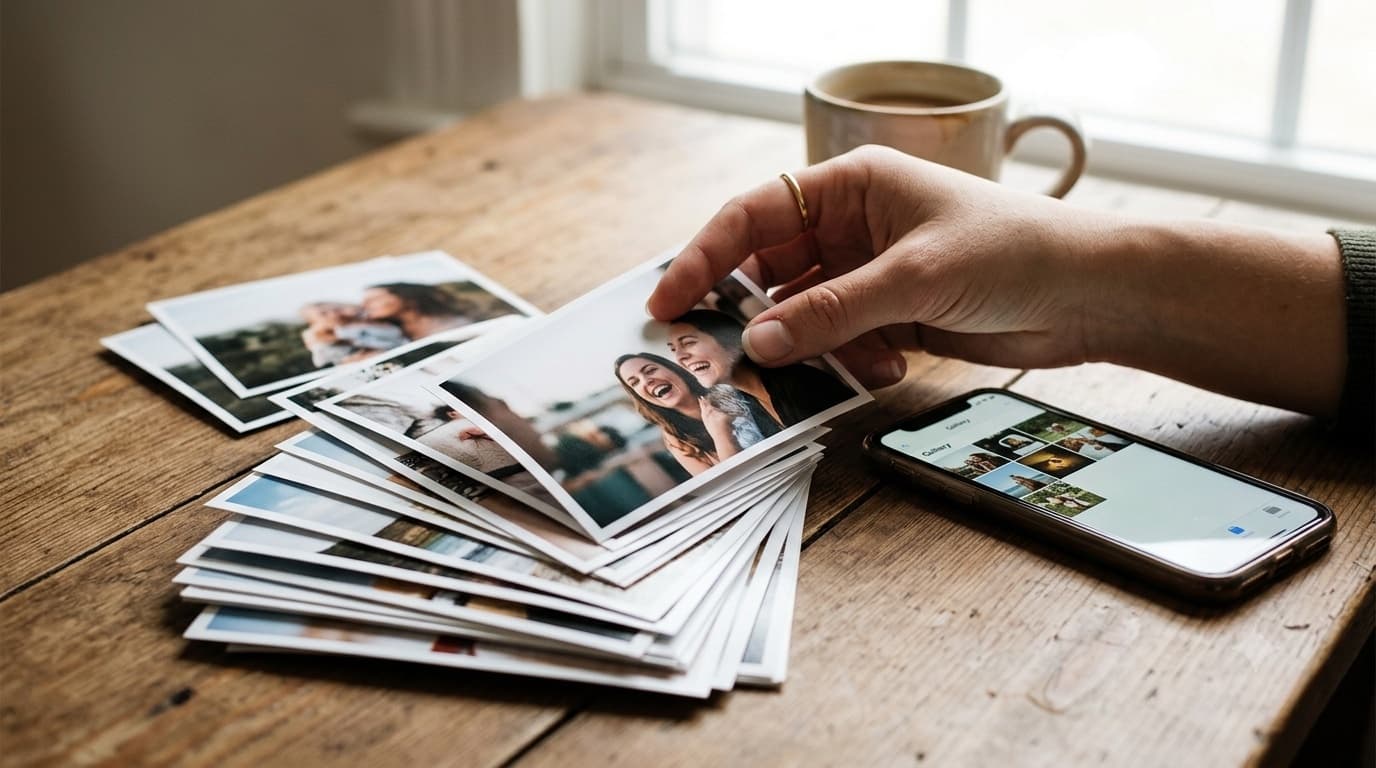
The party is over and the photos are in. Your guests uploaded them from their phones all evening, and now they sit in one gallery. At some point you want them on your own computer: to back them up, to send to a photo book service, to hand to the person editing the highlight video, or just to know they're safe.
This guide covers how to download every photo and video from a GuestDrop event as a ZIP, what to expect with a large event, and how long you have to do it. For how GuestDrop works before and during an event, see the event photo sharing page.
The short version
- Sign in and open the event in your dashboard.
- Choose Download all.
- Check the summary: number of files, total size, and how many ZIP parts that makes.
- Save each part.
- If any file failed, choose Retry failed files to get them in one more ZIP.
The rest of this guide explains each step and what can trip you up.
Step 1: Open the event in your dashboard
Download all lives on the event's page in your dashboard, not in the shared gallery. Guests can view and save individual photos from the gallery, but only you, the person who created the event, can export everything in one go.
If you came from one of GuestDrop's emails after the gallery closed, the link in that email opens the event with the download ready to go.
Step 2: Read the summary before you start
Before anything downloads, GuestDrop lists what you're about to get. Something like: 412 files, 6.8 GB, in 14 ZIP parts of up to 500 MB each.
Check two things against it. The first is disk space. You need room for the full total on the drive you're saving to, plus a bit more if you plan to unzip the files next to the ZIPs. Videos add up fast. A 6.8 GB event needs about 14 GB free if you keep both the ZIPs and the unzipped folders around while you check them.
The second is time. Everything comes down over your internet connection. On a decent home connection a few gigabytes takes minutes. On hotel Wi-Fi or a phone hotspot it can take much longer, so start it somewhere you can leave the laptop alone for a while.
Step 3: Understand the ZIP parts
Each ZIP part holds up to 500 MB of files. A small birthday party usually fits in a single ZIP. A wedding where guests filmed the speeches and the first dance can easily produce several gigabytes, and then you'll get a set of parts named like your-event-part-1-of-8.zip, your-event-part-2-of-8.zip, and so on.
The split exists so the download works everywhere. The ZIP is built in your browser from the files in storage, one file at a time, and some browsers have to hold a whole ZIP in memory before they can save it. Capping each part at 500 MB keeps that within what a normal laptop handles. A single video bigger than 500 MB gets a part to itself.
Parts don't depend on each other. Each one is a complete ZIP you can open on its own, so if you only get through half of them today, the half you saved is already usable.
Step 4: Which browser to use
Any current browser works, but they behave a little differently.
Chrome and Edge on a computer ask where to save each part, then write the ZIP straight to that file as it downloads. Memory use stays flat no matter how big the event is. If you have a choice, use one of these for a large event.
Safari and Firefox build each part in memory, then save it to your Downloads folder like any other download. This is why the 500 MB cap exists. It works fine; you'll just see each part appear when it's finished rather than growing on disk.
On a phone, it works, but think about whether you want it. Several gigabytes of ZIPs on a phone is awkward to unzip and eats storage you probably need. If you only want a handful of favourites on your phone, open the gallery, select those photos, and download just them.
Step 5: Save each part
Each part has its own Download button and shows how many files it holds and how big it is. Click a part, and while it's working you'll see progress like "Saving 23 of 41". When it's done, it's marked as saved and you move on to the next.
Doing it part by part means a hiccup costs you one part, not the whole export. If a part stops partway because your connection dropped, GuestDrop tells you and you try that part again. The others you already saved are fine.
If some files fail
Occasionally a single file won't come down, usually because the connection blinked at the wrong moment. When that happens, the rest of the part still downloads, and GuestDrop lists the files that didn't make it.
Choose Retry failed files and those files come down together in one extra ZIP, named with -retry on the end. You don't need to download the whole event again. If a file still fails after a retry, wait a few minutes and try again, or switch to a steadier connection.
Check what you got
Once everything is saved, unzip the parts and have a quick look before you delete anything or close the tab.
- Count the files. The total across all parts should match the number in the summary, plus whatever came in a retry ZIP.
- Open a few videos. Large videos are the files most likely to be cut short by a bad connection. If one won't play, download that part again.
- Spot-check quality. Zoom into a photo or two. These are the original files, so they should look exactly as sharp as the guest's camera made them.
Keep a second copy
A single folder on a single laptop is one spilled coffee from gone. The usual advice is three copies, on at least two kinds of storage, with one somewhere other than your home. In practice, for event photos, that can be as simple as:
- the unzipped folder on your computer,
- a copy on an external drive,
- a copy in a cloud service you already use.
If you connected Google Drive to the event, you already have the cloud copy. GuestDrop sends a copy of every upload into a folder in your own Drive as it arrives, so the ZIP gives you a local copy alongside it. Your Drive copy is never touched when the GuestDrop gallery closes or its originals are deleted.
How long you have to download
You can download everything any time while the gallery is open, and for a while after.
- A free gallery stays open for 7 days after the event.
- When it closes, guests can no longer view or upload, and a Download window begins. It lasts 30 days, or 90 days after a one-year gallery.
- GuestDrop emails you when the gallery closes and again 7 days before the originals are deleted. On a one-year gallery you also get an earlier reminder 30 days before.
- When the Download window ends, GuestDrop deletes its copy of the originals for good.
If you need longer, extending the gallery reopens it for your guests and cancels the scheduled deletion. That one-time payment per event is the only paid part of GuestDrop. Download all itself is free, on every event, the whole way through.
Downloading a few photos instead of everything
Sometimes you don't want the whole event. The person making a slideshow wants the best twenty shots, or a grandparent wants the photos of the grandchildren and nothing else.
For that, use the gallery. Select the photos you want and download just those. It's quicker than pulling down gigabytes and digging through a folder afterwards, and it works the same on a phone.
Who else can download
Only the event's creator can use Download all. Guests can look through the gallery while it's open and save the photos they like, but they can't export the whole event.
If someone else needs everything, like a co-host, a planner or a video editor, the simplest route is to download it yourself and share the folder, or share your Drive folder if you connected Drive. That keeps one person in charge of the full set.
A checklist for after the event
- Download everything within the first week, while it's fresh and before life gets in the way.
- Use Chrome or Edge on a computer for a large event.
- Make sure you have about twice the total size free on disk.
- Save every part, then retry any failed files.
- Count the files and open a few videos.
- Put a second copy somewhere other than your laptop.
- Set a reminder for the date in GuestDrop's close email, in case you need to come back.
People tend to leave this step until the reminder email arrives. Done the week after the event, while the gallery is still open, it takes a few minutes. To set up your next event, start from the event photo sharing page.
Ready to simplify your event?
Set up your GuestDrop event in under a minute and start collecting every guest's photos today.
Create Your Event - Free